> For the complete documentation index, see [llms.txt](https://support.backpack.exchange/llms.txt). Markdown versions of documentation pages are available by appending `.md` to page URLs; this page is available as [Markdown](https://support.backpack.exchange/wallet/actions/wallet-multi-accounts.md).
# Wallet Multi-Accounts
### Feature Overview
Wallet Multi-Accounts enables you to:
* Create separate wallet groups
* Maintain clearer identity boundaries
* Organize wallets based on usage or ownership
This ensures improved asset management, enhanced security, and an overall more structured wallet experience.
***
### Setting Up Multi-Accounts on Mobile
Follow the steps below to configure and manage multiple wallet accounts on your Backpack mobile app.
#### 1. Manage an Existing Group
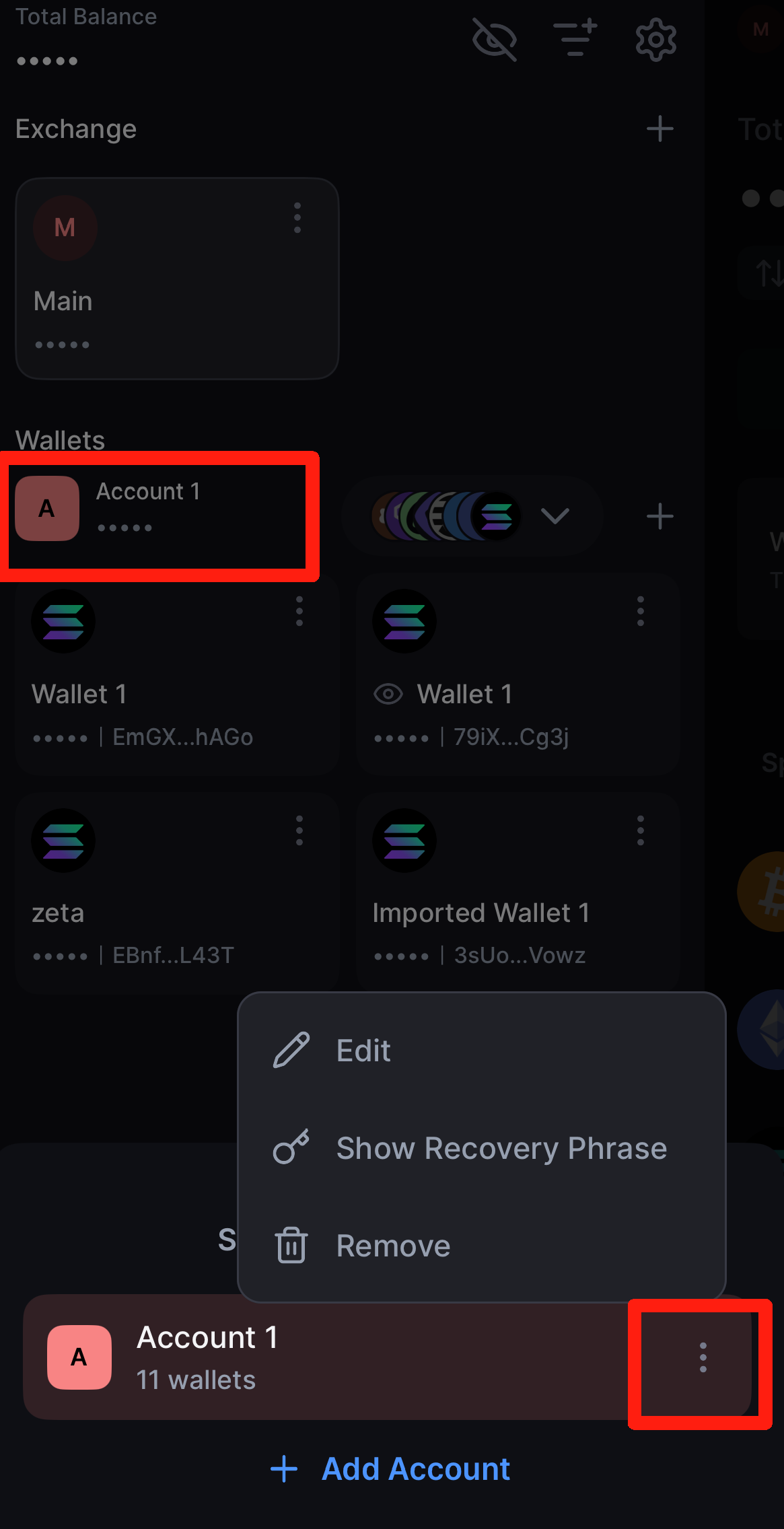
* Navigate to the **Wallet Management** screen.
* Under the **Wallets** section, click **Account 1** (or the group you wish to manage).
* Tap the **three dots** icon located at the bottom right corner.
* From here, you may:
* **Edit the account name**
* **Remove the account** from the list
***
#### 2. Add a New Group
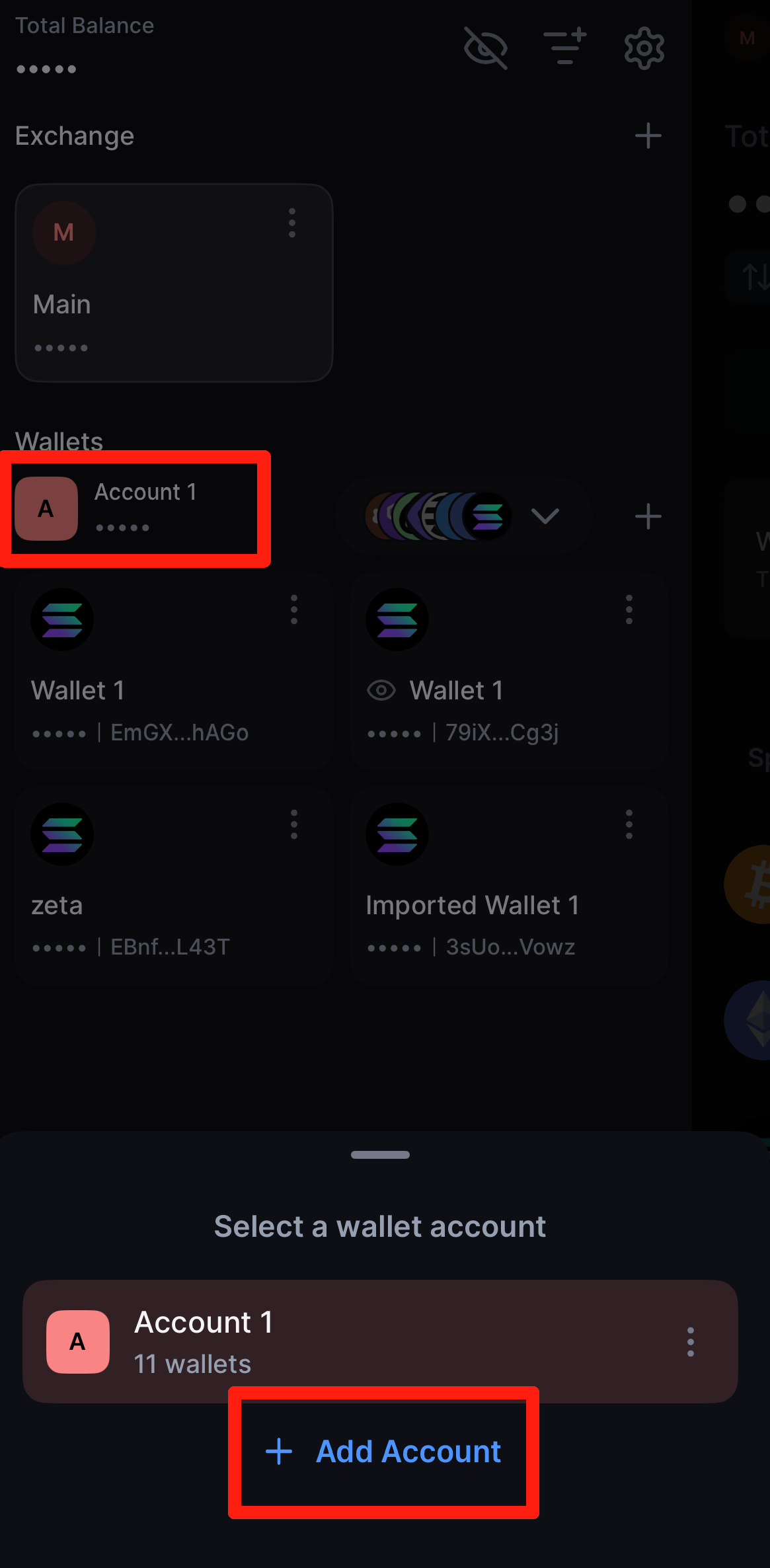
* Navigate to the **Wallet Management** screen.
* Under the **Wallets** section, tap **Account 1** (or any existing group).
* Select **Add Account**.
* Enter a **name** for the new account.
* Choose one of the following options:
* [**Import an existing wallet** ](/wallet/get-started/import-recover-wallet.md)using a seed phrase or private key
* **Create a new wallet** with a fresh seed phrase
### 3. Add a New Wallet Within a Group
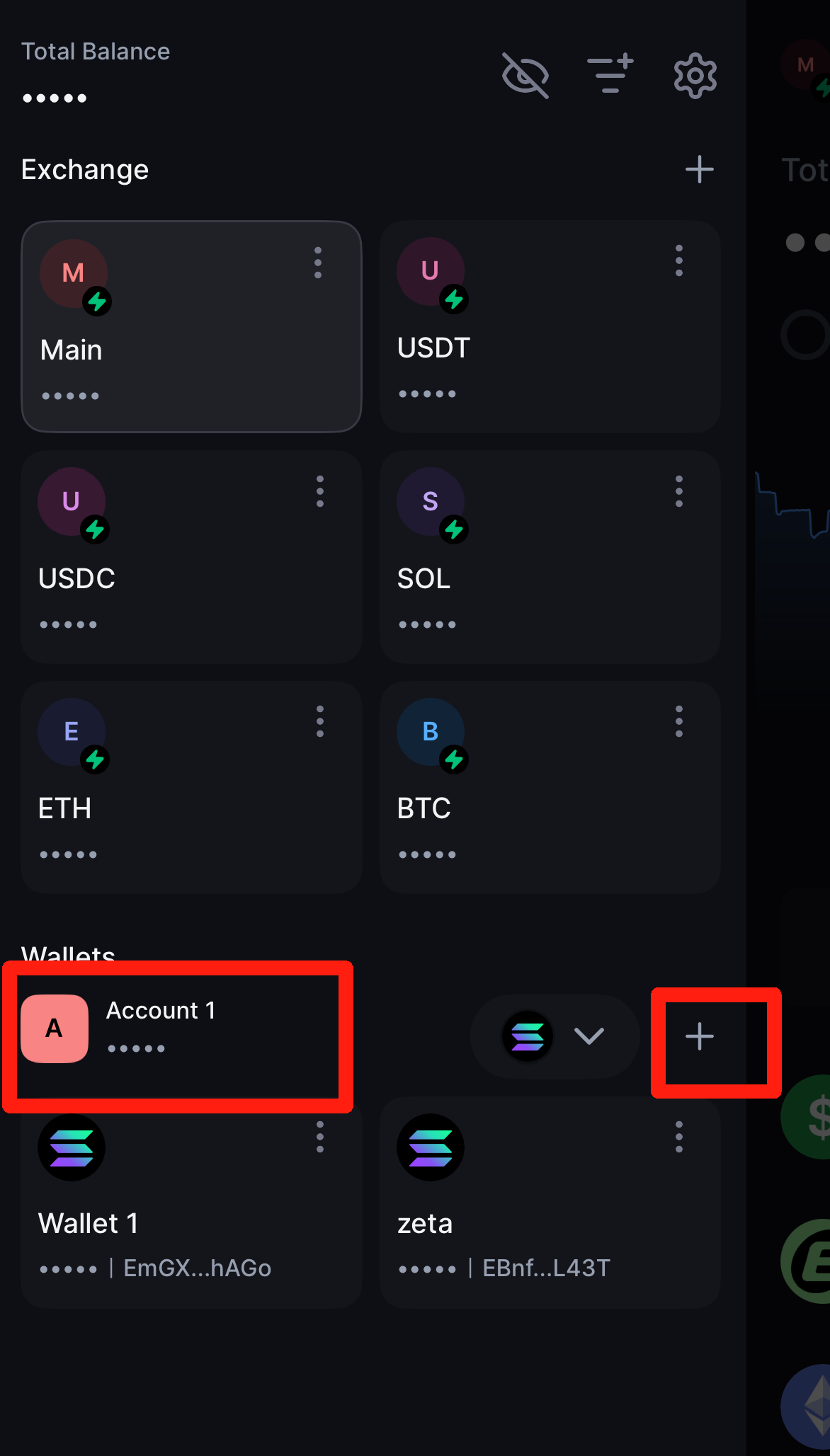
1. In the **Wallet Management** screen, locate **Account 1** (or the group you wish to manage) under the *Wallets* section.
2. Tap the **plus (+) icon** beside the account.
3. Select the **blockchain network** you wish to use.
4. Choose one of the following options:
* [**Import an existing wallet** ](/wallet/get-started/import-recover-wallet.md)on that chain
* **Create a new wallet** within the same group
***
### Example Use Cases
You can create different account groups for various purposes, such as:
* **Personal Wallets** – for individual transactions and asset management
* **Corporate Wallets** – for company-owned funds or operational usage
* [**Multisig Wallets**](/wallet/actions/multisig.md) – requiring multiple approvals for transactions
This structure enhances clarity, helps segregate responsibilities, and improves workflow efficiency for you managing diverse assets.
---
# Agent Instructions
This documentation is published with GitBook. GitBook is the documentation platform designed so that both humans and AI agents can read, navigate, and reason over technical content effectively. Learn more at gitbook.com.
## Querying This Documentation
If you need additional information that is not directly available in this page, you can query the documentation by asking a question.
Perform an HTTP GET request on the following URL with the `ask` and `goal` query parameters:
```
GET https://support.backpack.exchange/wallet/actions/wallet-multi-accounts.md?ask=&goal=
```
`ask` is the immediate question: it should be specific, self-contained, and written in natural language.
`goal` is what the user is ultimately trying to achieve, the reason they need the answer. Sharing it helps GitBook give you a better, more relevant answer. A goal is most helpful when it describes the outcome the user wants rather than restating the question. For example, with `ask=how do I create an API token`, a goal like `automate deployments from our CI pipeline` lets GitBook tailor the answer to that use case.
The response will contain a direct answer to the question and relevant excerpts and sources from the documentation.
Use this mechanism when the answer is not explicitly present in the current page, you need clarification or additional context, or you want to retrieve related documentation sections.