> For the complete documentation index, see [llms.txt](https://support.backpack.exchange/llms.txt). Markdown versions of documentation pages are available by appending `.md` to page URLs; this page is available as [Markdown](https://support.backpack.exchange/support-docs/ru/koshelyok/ustranenie-nepoladok/prosmotr-vashei-secret-recovery-phrase-i-privatnykh-klyuchei.md).
# Просмотр вашей Secret Recovery Phrase и приватных ключей
{% hint style="info" %}
Этот документ переведён с помощью машинного перевода и может содержать неточности. В случае расхождений руководствуйтесь [английской версией](https://support.backpack.exchange/).
{% endhint %}
В настройках Backpack Wallet можно посмотреть **Secret Recovery Phrase** или **Private Key** отдельного кошелька.
> **Предупреждение:** Храните Secret Recovery Phrase и Private Key в безопасности. Служба поддержки Backpack никогда не попросит предоставить эти данные. Никому их не сообщайте и не вводите в приложениях или на сайтах, которым вы не доверяете. Любой, кто получит доступ к ним, может контролировать ваш кошелёк.
## Просмотр вашей Secret Recovery Phrase
### Расширение браузера
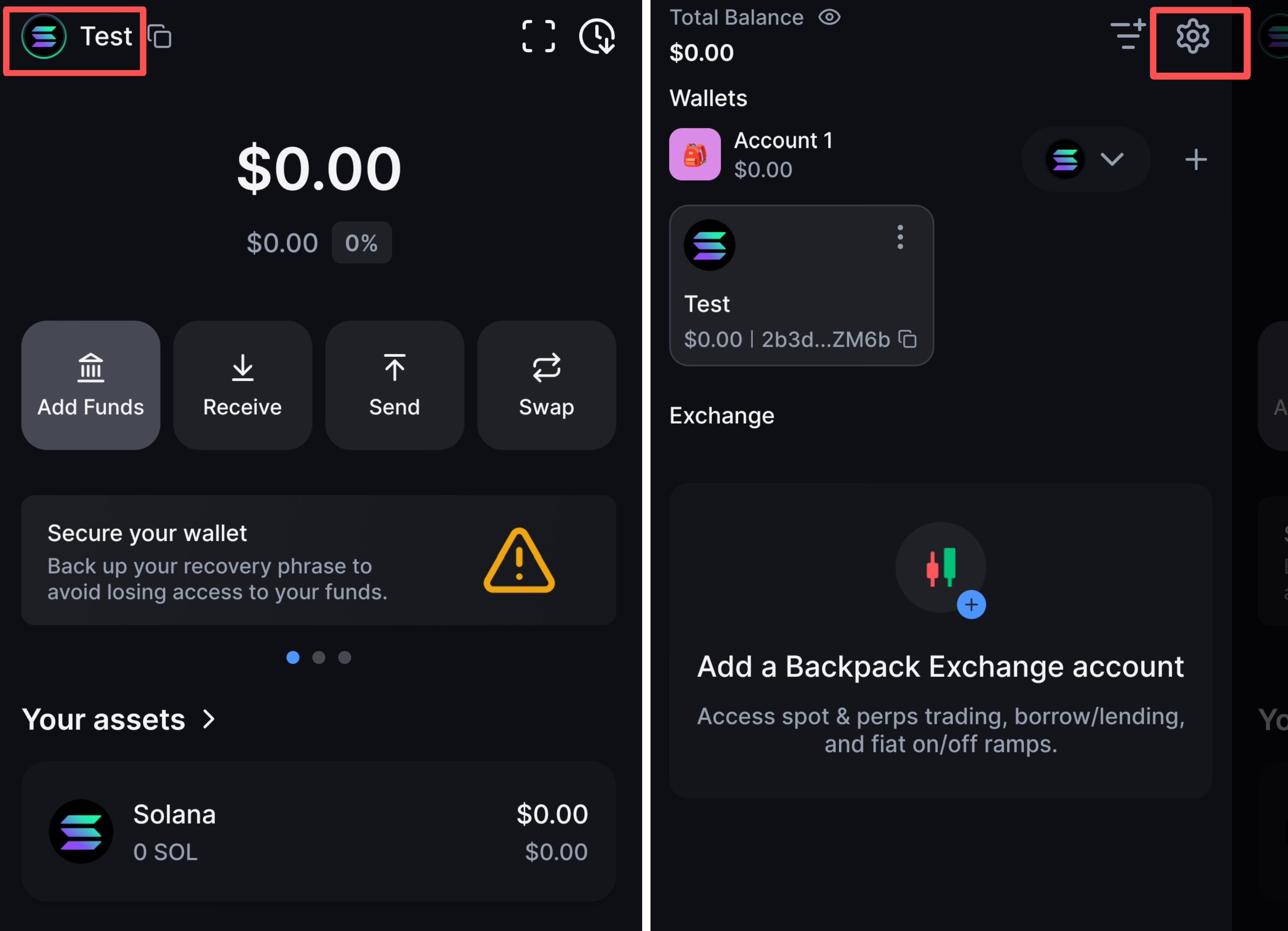
1. Нажмите значок профиля в левом верхнем углу, выберите **Settings**, затем **My Account**.
2. Выберите **Show Secret Recovery Phrase**, введите пароль кошелька, затем выберите **Show secrets**, чтобы посмотреть Secret Recovery Phrase.
***
### Мобильное приложение
1. Нажмите значок профиля в левом верхнем углу, затем выберите **Settings**.
2. Выберите **Wallet**, затем **Show Secret Recovery Phrase** в нижней части страницы.
***
## Просмотр Private Key
### Расширение браузера
1. Нажмите значок профиля, выберите **Settings**, затем **Wallets**.
2. Найдите кошелёк, Private Key которого хотите посмотреть, нажмите **меню с тремя точками (⋮)** рядом с ним, затем выберите **Private Key**.
3. Введите пароль кошелька, затем выберите **Show secrets**, чтобы посмотреть Private Key.
***
### Мобильное приложение
1. Нажмите значок профиля, найдите нужный аккаунт, затем нажмите **меню с тремя точками (⋮)** рядом с ним.
2. Выберите **Show Private Key,** ознакомьтесь с предупреждением, затем снова выберите **Show Private Key**, чтобы посмотреть ключ.
---
# Agent Instructions
This documentation is published with GitBook. GitBook is the documentation platform designed so that both humans and AI agents can read, navigate, and reason over technical content effectively. Learn more at gitbook.com.
## Querying This Documentation
If you need additional information that is not directly available in this page, you can query the documentation by asking a question.
Perform an HTTP GET request on the following URL with the `ask` and `goal` query parameters:
```
GET https://support.backpack.exchange/support-docs/ru/koshelyok/ustranenie-nepoladok/prosmotr-vashei-secret-recovery-phrase-i-privatnykh-klyuchei.md?ask=&goal=
```
`ask` is the immediate question: it should be specific, self-contained, and written in natural language.
`goal` is what the user is ultimately trying to achieve, the reason they need the answer. Sharing it helps GitBook give you a better, more relevant answer. A goal is most helpful when it describes the outcome the user wants rather than restating the question. For example, with `ask=how do I create an API token`, a goal like `automate deployments from our CI pipeline` lets GitBook tailor the answer to that use case.
The response will contain a direct answer to the question and relevant excerpts and sources from the documentation.
Use this mechanism when the answer is not explicitly present in the current page, you need clarification or additional context, or you want to retrieve related documentation sections.