> For the complete documentation index, see [llms.txt](https://support.backpack.exchange/llms.txt). Markdown versions of documentation pages are available by appending `.md` to page URLs; this page is available as [Markdown](https://support.backpack.exchange/support-docs/es/wallet/solucion-de-problemas/ver-tu-frase-secreta-de-recuperacion-y-tus-claves-privadas.md).
# Ver tu frase secreta de recuperación y tus claves privadas
Las Frases de Recuperación Secreta te permiten recuperar tus cuentas de la billetera de Backpack.
Puedes consultar tu **Secret Recovery Phrase** o la **Private Key** de una wallet específica desde la configuración de Backpack Wallet.
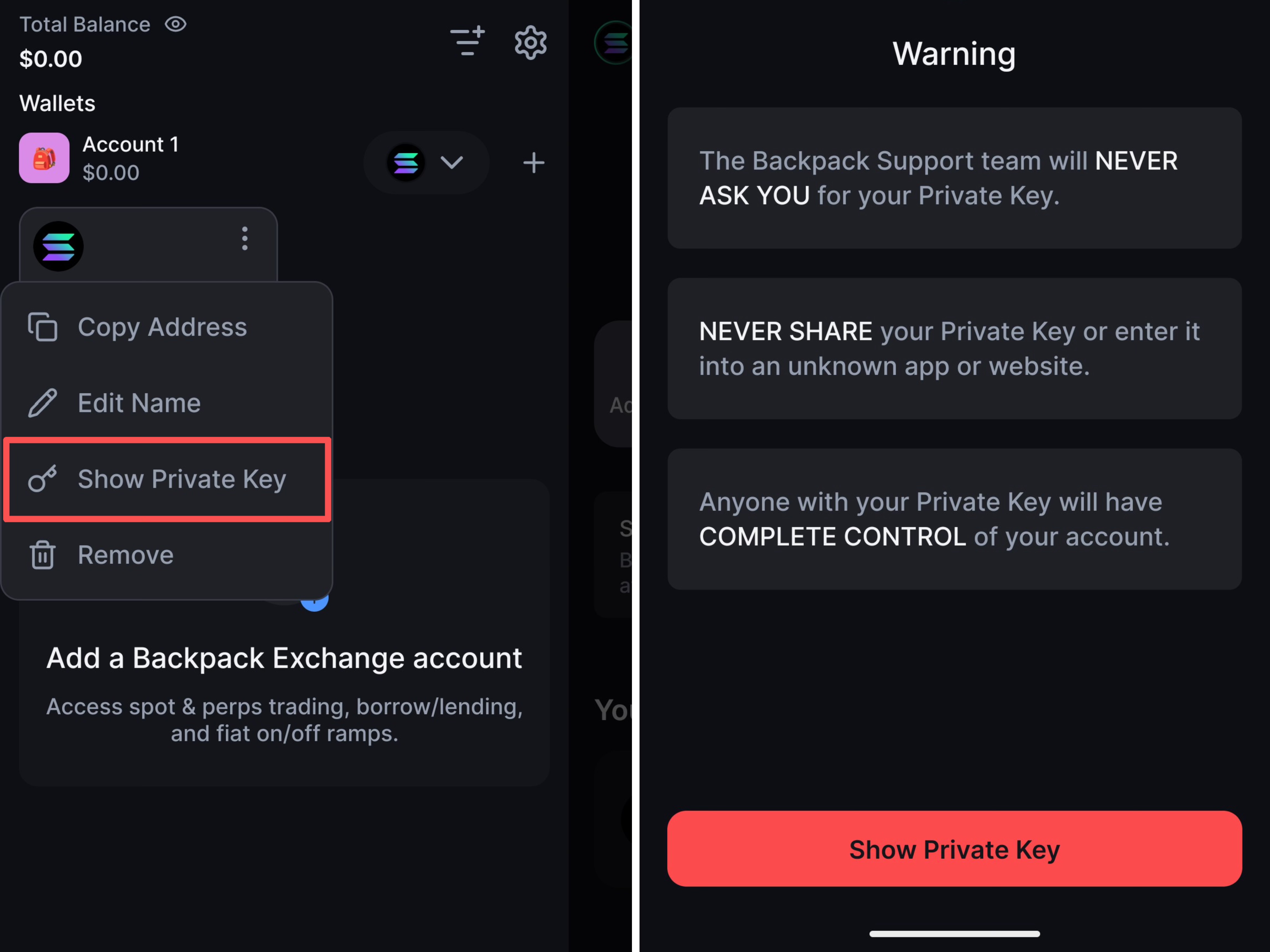
> **Advertencia:** Mantén seguras tu Secret Recovery Phrase y tus Private Keys. El soporte de Backpack nunca te pedirá estos datos. No los compartas con nadie ni los introduzcas en una aplicación o sitio web que no sea de confianza. Cualquier persona con acceso a ellos podría controlar tu wallet.
## Consultar tu Secret Recovery Phrase
### Extensión del navegador
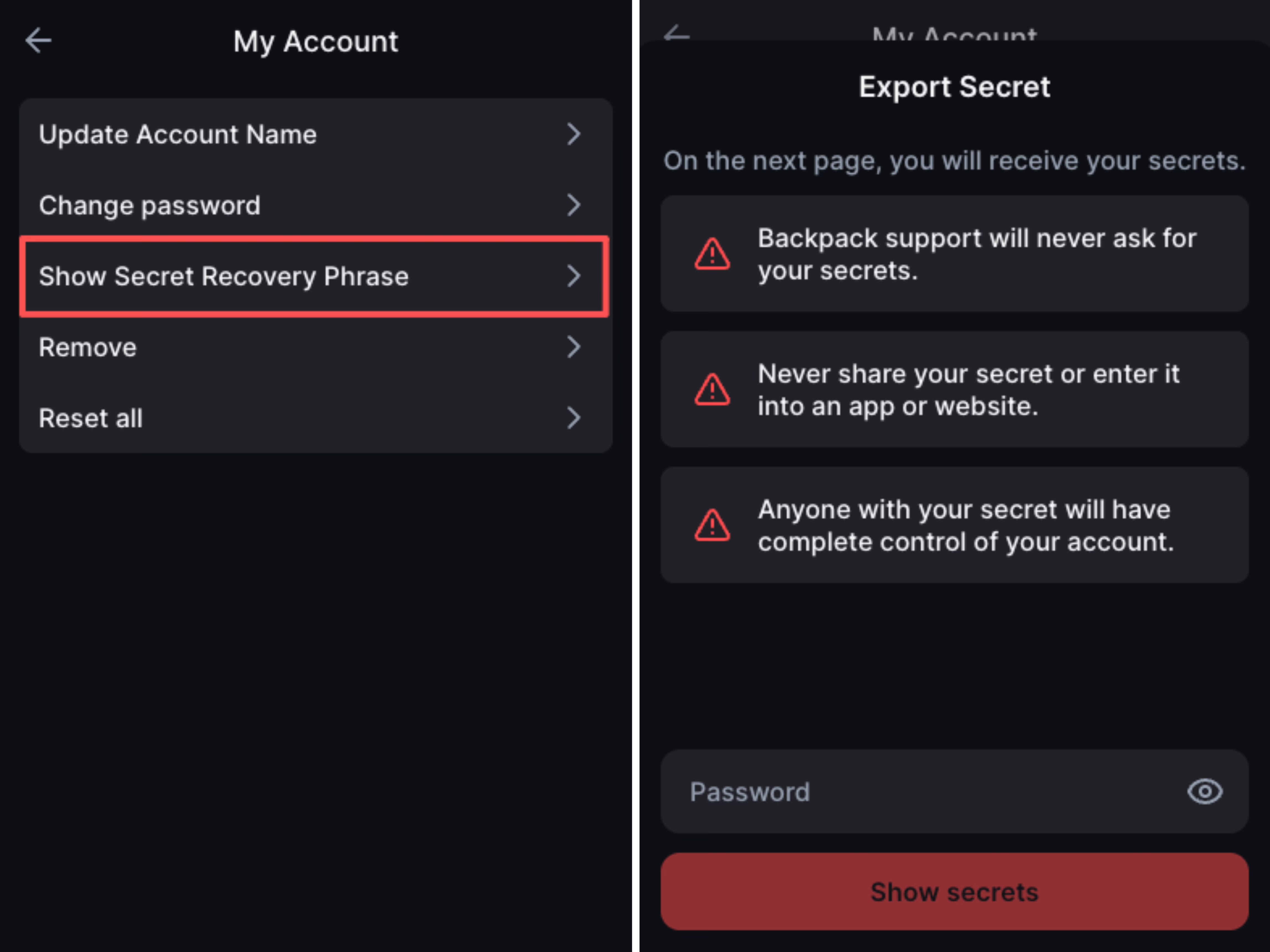
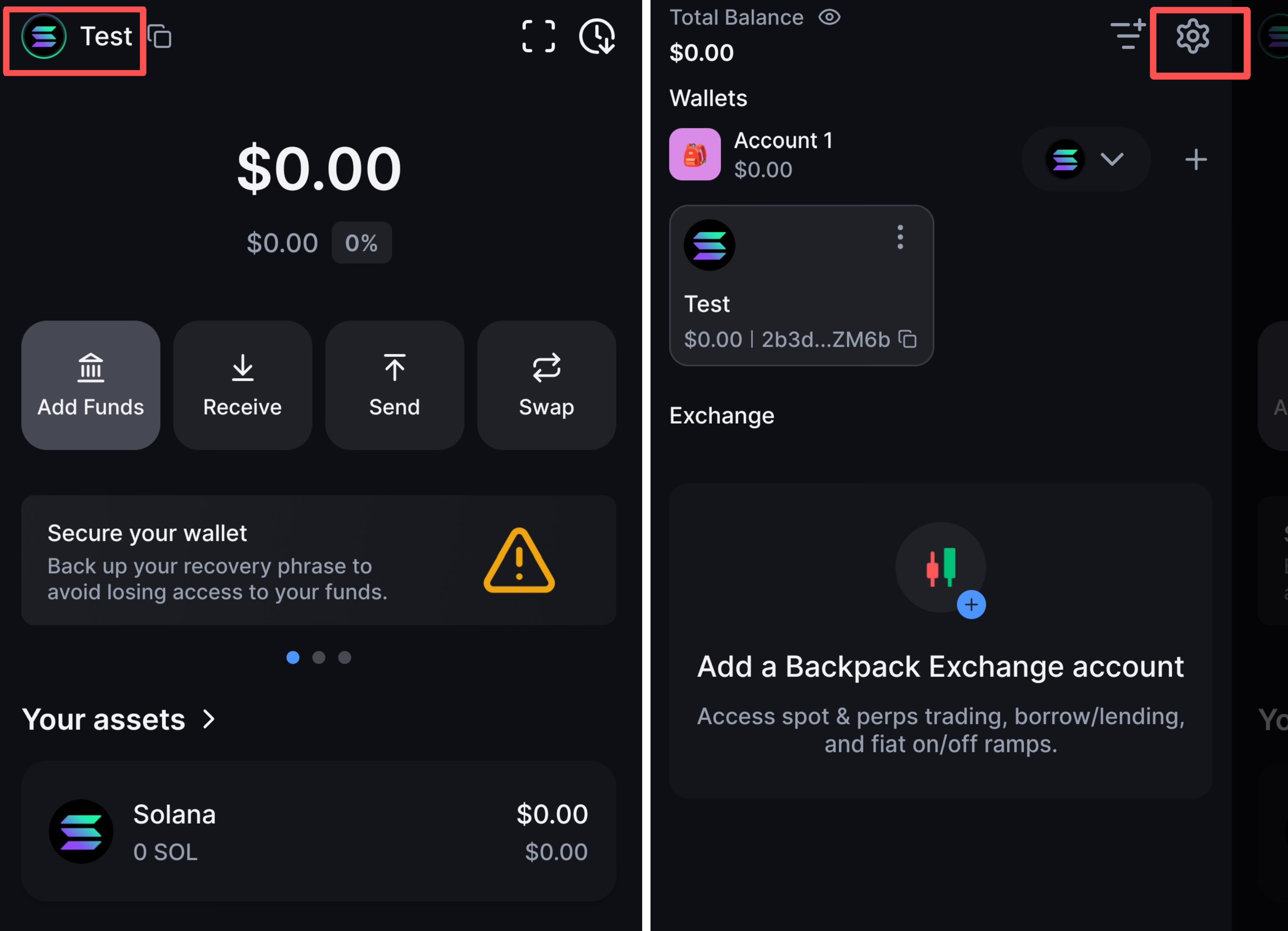
1. Haz clic en el icono de tu perfil, en la esquina superior izquierda, selecciona **Settings** y, a continuación, **My Account**.
2. Selecciona **Show Secret Recovery Phrase**, introduce la contraseña de tu wallet y selecciona **Show secrets** para consultar tu Secret Recovery Phrase.
***
### Móvil
1. Toca el icono de tu perfil, en la esquina superior izquierda, y selecciona **Settings**.
2. Selecciona **Wallet** y, a continuación, **Show Secret Recovery Phrase** en la parte inferior de la página.
***
## Consultar una Private Key
### Extensión del navegador
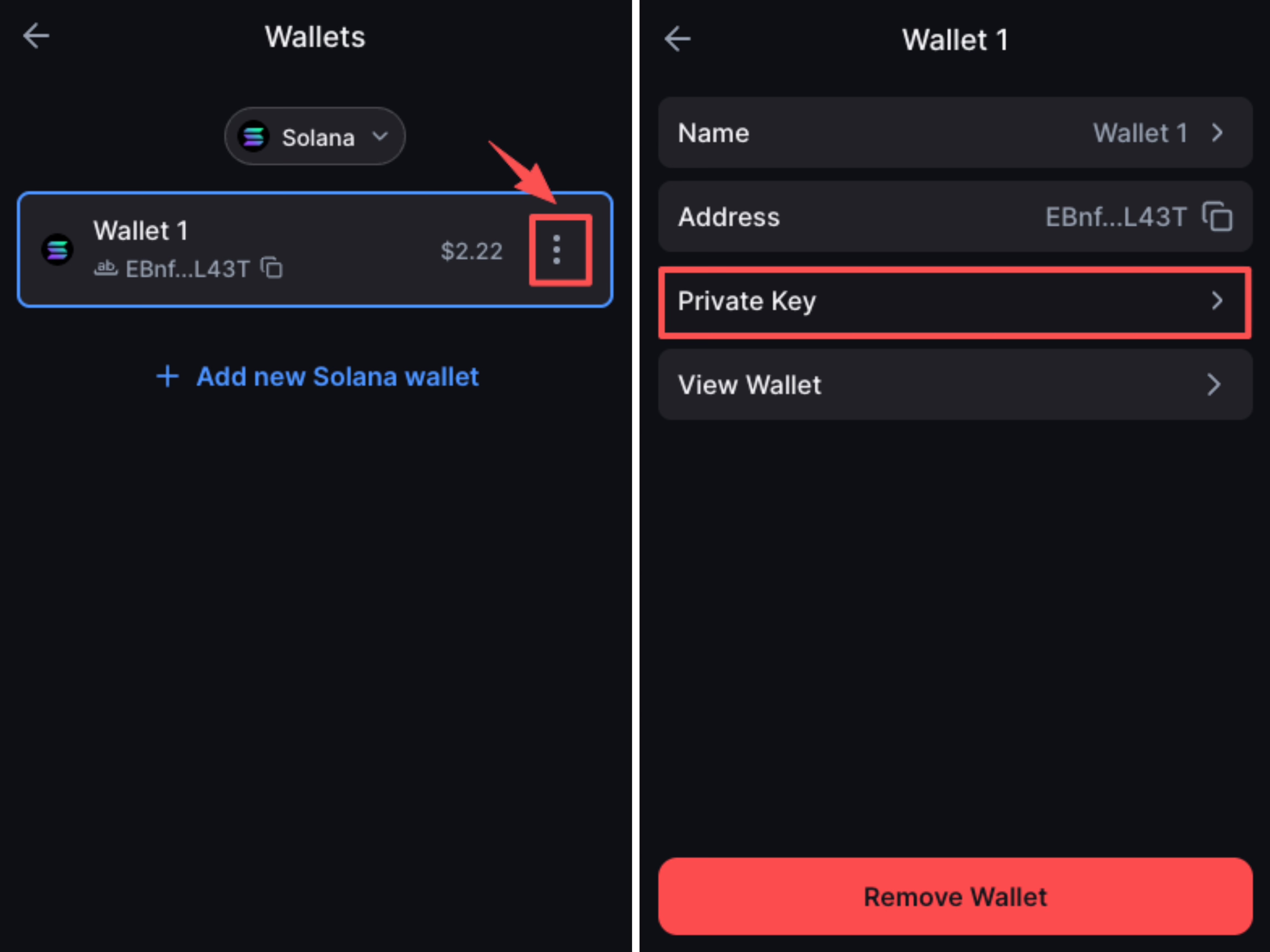
1. Haz clic en el icono de tu perfil, en la esquina superior izquierda, selecciona **Settings** y, a continuación, **Wallets**.
2. Busca la wallet cuya Private Key quieres consultar, haz clic en el **menú de tres puntos (⋮)** situado junto a ella y selecciona **Private Key**.
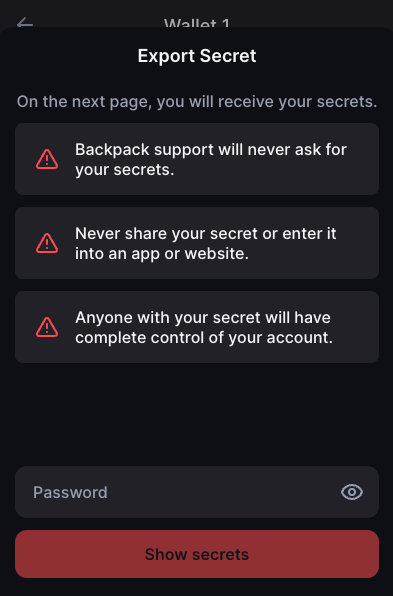
3. Introduce la contraseña de tu wallet y selecciona **Show secrets** para consultar la Private Key.
***
### Móvil
1. Toca el icono de tu perfil, busca la cuenta correspondiente y toca el **menú de tres puntos (⋮)** situado junto a ella.
2. Selecciona **Show Private Key,** revisa el aviso de seguridad y vuelve a seleccionar **Show Private Key** para consultarla.
---
# Agent Instructions
This documentation is published with GitBook. GitBook is the documentation platform designed so that both humans and AI agents can read, navigate, and reason over technical content effectively. Learn more at gitbook.com.
## Querying This Documentation
If you need additional information that is not directly available in this page, you can query the documentation by asking a question.
Perform an HTTP GET request on the following URL with the `ask` and `goal` query parameters:
```
GET https://support.backpack.exchange/support-docs/es/wallet/solucion-de-problemas/ver-tu-frase-secreta-de-recuperacion-y-tus-claves-privadas.md?ask=&goal=
```
`ask` is the immediate question: it should be specific, self-contained, and written in natural language.
`goal` is what the user is ultimately trying to achieve, the reason they need the answer. Sharing it helps GitBook give you a better, more relevant answer. A goal is most helpful when it describes the outcome the user wants rather than restating the question. For example, with `ask=how do I create an API token`, a goal like `automate deployments from our CI pipeline` lets GitBook tailor the answer to that use case.
The response will contain a direct answer to the question and relevant excerpts and sources from the documentation.
Use this mechanism when the answer is not explicitly present in the current page, you need clarification or additional context, or you want to retrieve related documentation sections.