> For the complete documentation index, see [llms.txt](https://support.backpack.exchange/llms.txt). Markdown versions of documentation pages are available by appending `.md` to page URLs; this page is available as [Markdown](https://support.backpack.exchange/support-docs/es/exchange/cuenta-de-exchange/crea-una-cuenta-nueva/como-crear-una-cuenta-en-la-web.md).
# ¿Cómo Crear una Cuenta en la Web?
Para crear una cuenta de Backpack Exchange, visita [https://backpack.exchange](https://backpack.exchange/) y selecciona **Sign Up (Registrarse)**.
Puedes crear una cuenta con tu correo electrónico y contraseña, o registrarte con tu cuenta de Google o Apple.
* **Correo electrónico:** Ingresa tu dirección de correo electrónico, crea una contraseña y sigue los pasos de registro que aparecen a continuación.
* **Google o Apple:** Selecciona **Sign up with Google (Registrarse con Google)** o **Sign up with Apple (Registrarse con Apple)** y sigue las instrucciones en pantalla. Para ver los pasos detallados, consulta [Registrarse o Iniciar Sesión con Google o Apple](/support-docs/es/exchange/seguridad/inicio-de-sesion-con-google-y-apple/registrarse-o-iniciar-sesion-con-google-o-apple.md).
{% hint style="info" %}
El inicio de sesión con Google y Apple no está disponible en Backpack EU ni en el Reino Unido.
{% endhint %}
{% stepper %}
{% step %}
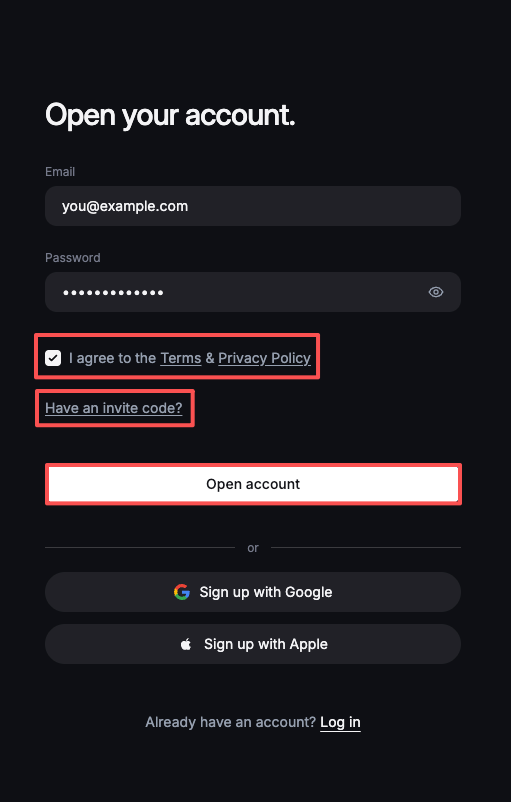
### Ingresa los datos de tu cuenta
#### 1) Ingresa una dirección de correo electrónico válida
* **Nota: Necesitarás acceso a este correo más adelante en el proceso de registro.**
#### 2) Crea una contraseña segura y única
* **Nota: La contraseña debe tener al menos 8 caracteres, incluyendo una letra minúscula, una letra mayúscula, un número y un carácter especial. No puede contener espacios.**
#### 3) Acepta los Términos y la Política de Privacidad
#### 4) Ingresa un código de referido (si aplica)
* Selecciona **Have an invite code? (¿Tienes un código de invitación?)** para ingresarlo.
#### 5) Selecciona Open account (Abrir cuenta) para continuar.
{% endstep %}
{% step %}
### Verifica tu dirección de correo electrónico
Recibirás un código de verificación automático en tu correo. Ingresa este código dentro de los próximos 10 minutos. Si no ves el correo, revisa otras carpetas como Spam o Promociones.
**Si el problema persiste, comunícate con Soporte.**
{% endstep %}
{% step %}
### Inicia el proceso de Verificación de Identidad
1\) Elige tu país de residencia
* [Consulta las Regiones y Países Admitidos](/support-docs/es/exchange/cuenta-de-exchange/verification-de-identidad/regiones-admitidas.md)
* [Revisa las guías para el envío de comprobante de domicilio (POA)](/support-docs/es/exchange/cuenta-de-exchange/verification-de-identidad/documentos-requeridos-para-la-verificacion-kyc.md)
{% endstep %}
{% step %}
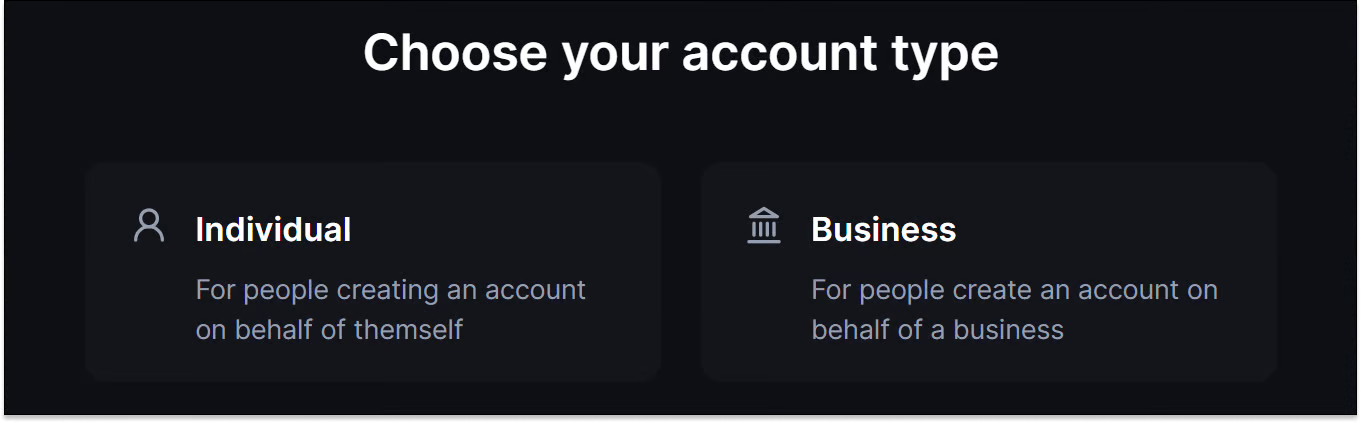
### Begin the Identity Verification process
{% endstep %}
{% endstepper %}
---
# Agent Instructions
This documentation is published with GitBook. GitBook is the documentation platform designed so that both humans and AI agents can read, navigate, and reason over technical content effectively. Learn more at gitbook.com.
## Querying This Documentation
If you need additional information that is not directly available in this page, you can query the documentation by asking a question.
Perform an HTTP GET request on the following URL with the `ask` and `goal` query parameters:
```
GET https://support.backpack.exchange/support-docs/es/exchange/cuenta-de-exchange/crea-una-cuenta-nueva/como-crear-una-cuenta-en-la-web.md?ask=&goal=
```
`ask` is the immediate question: it should be specific, self-contained, and written in natural language.
`goal` is what the user is ultimately trying to achieve, the reason they need the answer. Sharing it helps GitBook give you a better, more relevant answer. A goal is most helpful when it describes the outcome the user wants rather than restating the question. For example, with `ask=how do I create an API token`, a goal like `automate deployments from our CI pipeline` lets GitBook tailor the answer to that use case.
The response will contain a direct answer to the question and relevant excerpts and sources from the documentation.
Use this mechanism when the answer is not explicitly present in the current page, you need clarification or additional context, or you want to retrieve related documentation sections.