# Using Grid Bots on Mobile
### How to Set Up a Grid Bot?
#### Step 1: Create a Grid Bot
1. Log in to your exchange account.
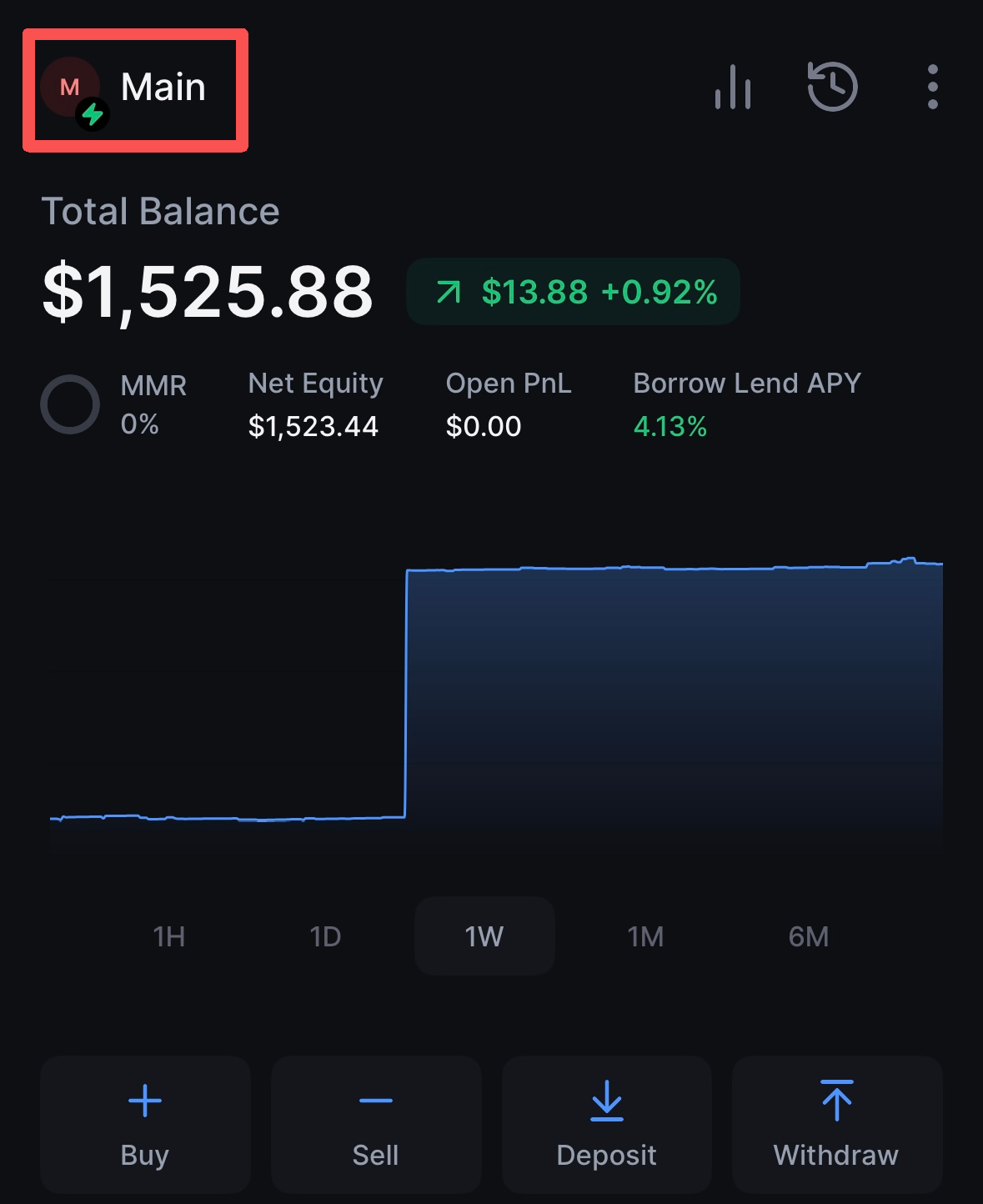
2. Click on your **account avatar**.
3. Switch to the **Bots** tab, then click the **"+" icon** next to it.
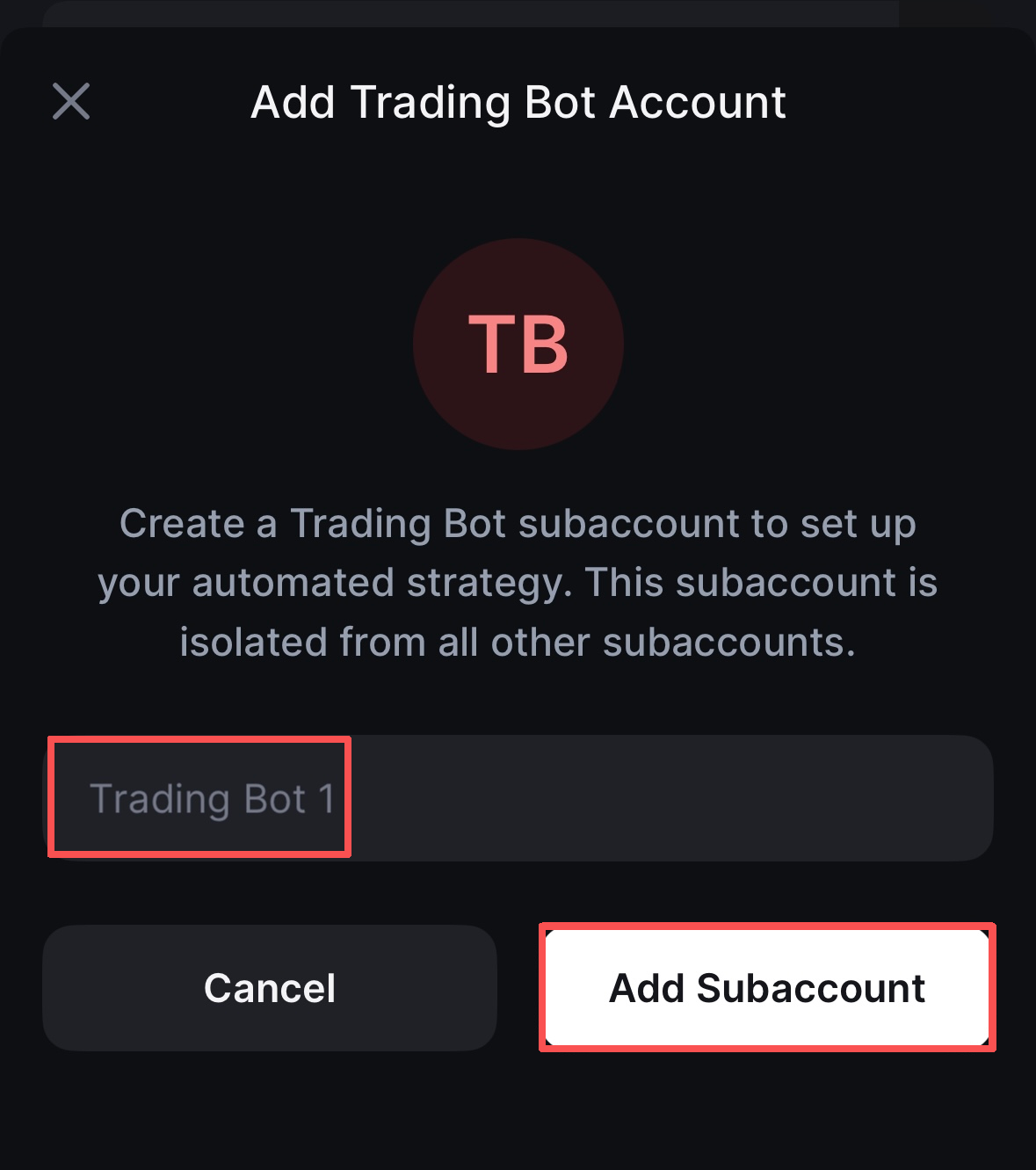
4. Enter a name for your bot (e.g., "SOL Grid Strategy").
5. Click **Add subaccount**.
***
#### Step 2: Fund Your Bot
Transfer funds to your bot subaccount using one of these methods:
* [Transfer funds from your main account](https://support.backpack.exchange/deposit-and-withdraw/crypto/deposit/how-to-deposit#deposit-via-subaccounts)
* [Deposit from an external wallet into the subaccount.](https://support.backpack.exchange/exchange/deposit-and-withdraw/crypto/deposit/how-to-deposit)
***
#### Step 3: Activate the Bot
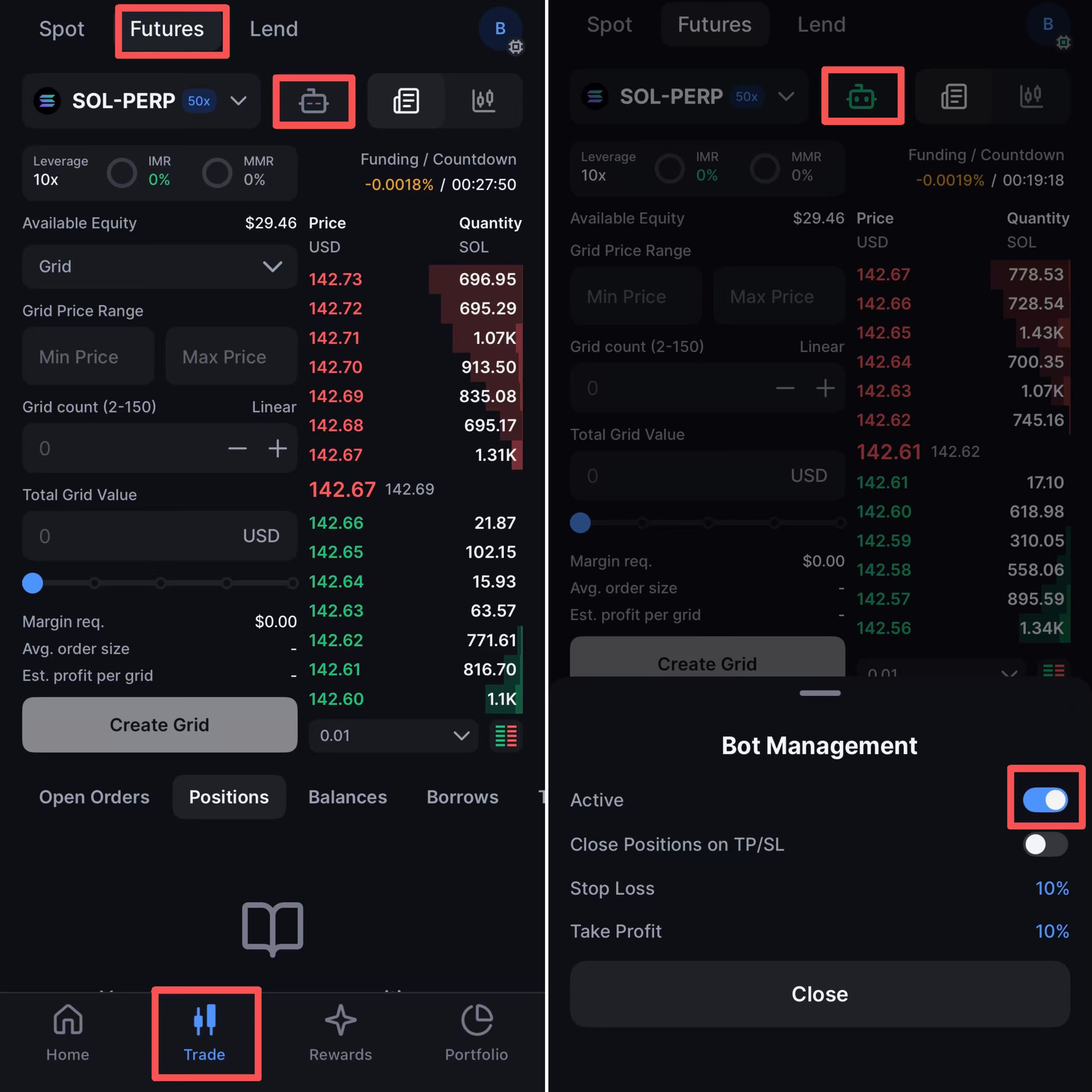
1. Enter your **bot sub\_account.**
2. Go to the trading interface and select **Futures Trading**.
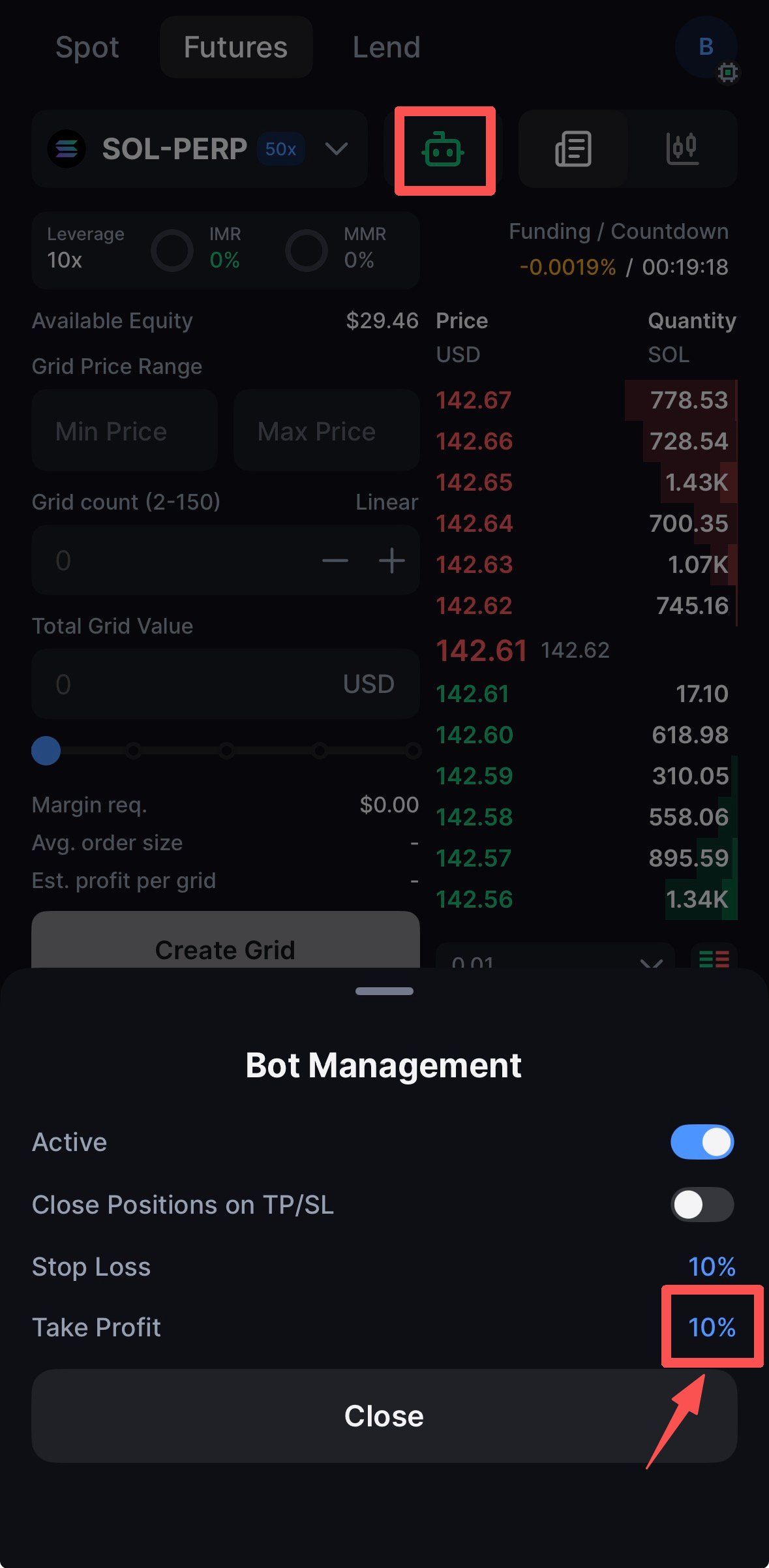
3. Click the **bot icon** next to the trading pair, then toggle the bot **ON**.
***
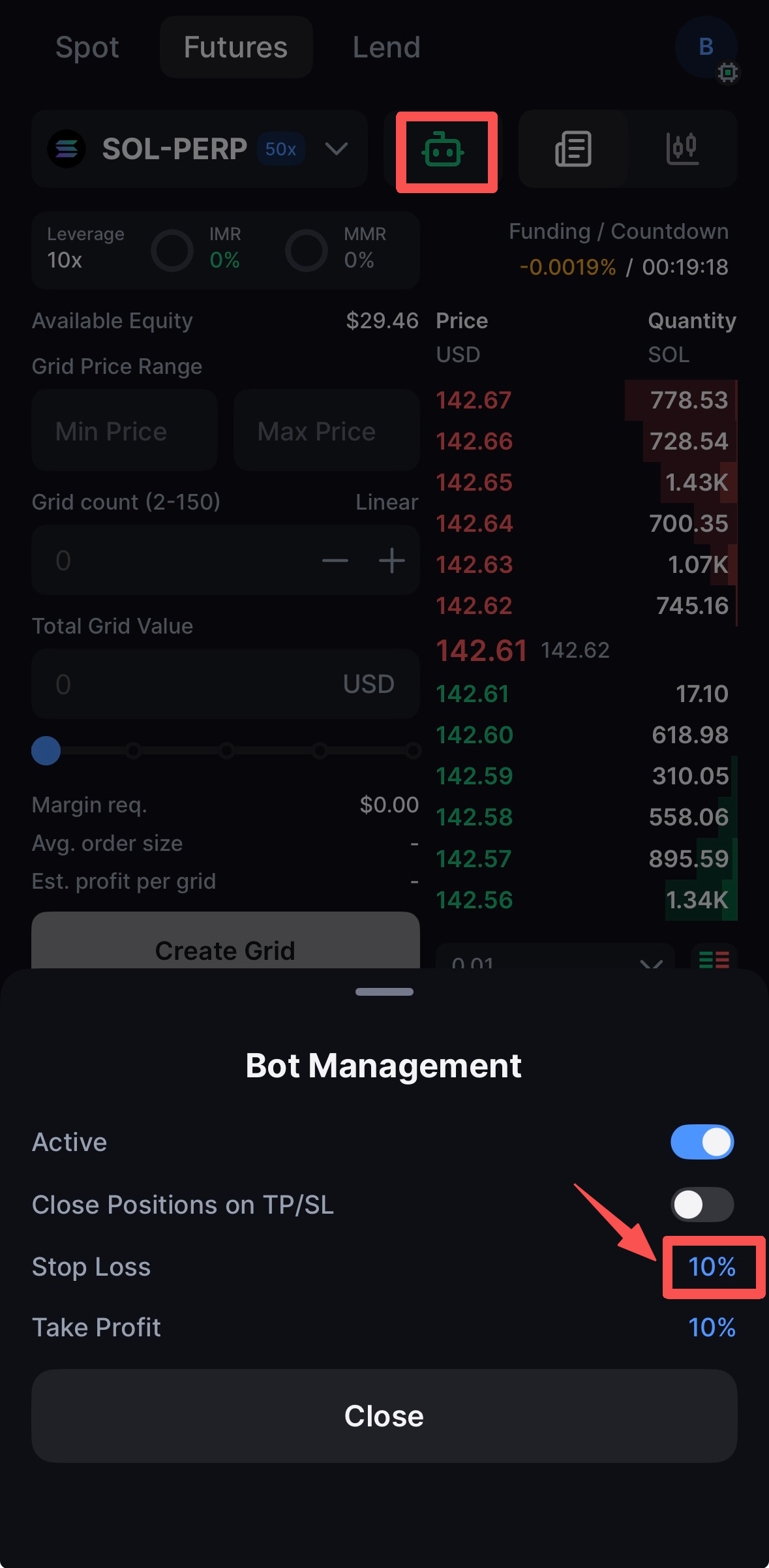
4. Set your **take-profit and stop-loss** levels.
> ⚠️ **Important:** Take-profit and stop-loss apply to the **entire bot subaccount**, not to individual grids.
**Stop-Loss**
Defines a drawdown threshold that will stop the bot when reached.
**How it works:**
* The bot tracks the starting equity of your subaccount from the moment the strategy is activated.
* If equity falls X% below the starting equity, the bot stops automatically.
**Example:** Starting equity is $1,500. With a 20% stop-loss setting, the bot stops if equity drops to $1,200.
**Take-Profit**
Defines an equity threshold that will pause the bot when reached.
**How it works:**
* The bot tracks the starting equity of your subaccount from the moment the strategy is activated.
* If equity rises X% above the starting equity, the bot pauses automatically.
**Example:** Starting equity was $1,000. With a 20% take-profit setting, the bot pauses when equity reaches $1,200.
***
**Auto-Close Positions**
If you want the position to close automatically when a take-profit or stop-loss level is reached, enable **“Close Position on TP/SL.”**
***
#### Step 4: Configure Parameters
1. Select your target trading pair (e.g., SOL-PERP) and adjust the **leverage** as needed.
2. Set the **Price Lower Limit** — The lowest price in your grid range.
3. Set the **Price Upper Limit** — The highest price in your grid range.
4. Enter the **Number of Grids** — How many price levels to create within the range.
5. Enter the **Total Grid Value** — The capital allocated to this grid.
6. Click **Create Grid** — The bot will begin running automatically.
> **Note:** More grids = more frequent trades with smaller price differences between levels. Fewer grids = less frequent trades with larger price differences between levels.
***
### Bot Management
#### Understanding Bot ON/OFF States
The ON/OFF toggle controls whether the bot is actively managing trades for the entire subaccount.
| State | What Happens |
| ------------- | ------------------------------------------------------------------------------------------------------------------------------------------------------------------------------- |
| ON(Active) | The bot actively executes trades according to your grid configurations.
Important: You cannot manually trade in this subaccount while the bot is ON.
|
| OFF(Inactive) | The bot stops executing new orders. Existing pending orders remain but can be cancelled manually. You can trade manually in the subaccount. |
> ⚠️ **Key Point:** If the bot is ON but you have no active grids, no trading will occur. The bot needs at least one grid to execute trades.
> ⚠️ **Manual Trading Restriction:** You cannot manually place orders in a bot subaccount while the bot is ON. Turn the bot OFF first if you need to intervene manually.
***
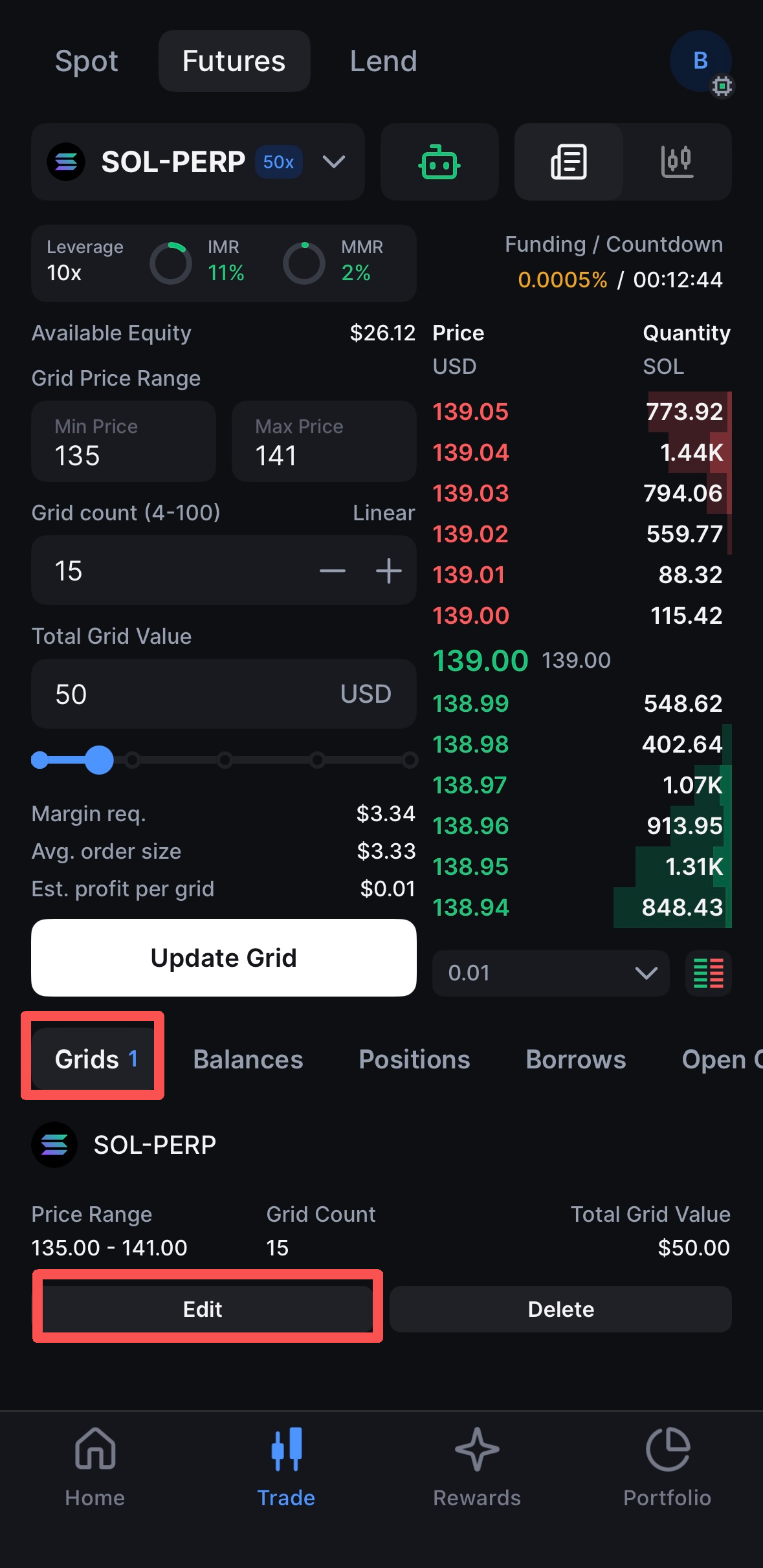
#### Adjusting Grid Settings
To modify an active grid:
1. Go to the **Grids** tab.
2. Select **Edit**.
3. Adjust parameters such as:
* Expanding or narrowing the price range
* Pausing or restarting the grid
***
#### Deleting a Grid
1. Go to the **Grids** tab.
2. Select **Delete**.
3. Choose whether to close all remaining positions automatically.